TL;DR
- Google publishes an official, free MCP server that connects your Google Ads account to Claude. You do not need Supermetrics or any coding.
- The hard part is not the AI, it is three Google Cloud credentials: an OAuth client, a developer token and a project ID.
- With the Explorer level of the token (granted instantly) you can already read your real accounts, and it works for any account inside your MCC.
- The connection is read-only: Claude reads your metrics, but it cannot pause campaigns or change bids.
- Initial setup takes under an hour. After that, you just ask Claude about your campaigns and it answers with real data.
You have Claude open in one tab and Google Ads in another. You want to ask it something as simple as “which campaign is blowing up my CPA this week?”, but for it to answer with real data you have to export a CSV, paste it into the chat and cross your fingers that no column is missing. Every single time.
In just a few months I have gone from doing exactly that to building myself a system that connects to the ad platforms I work with. Before, I was always downloading the data and, honestly, it was pretty clunky because I had to keep checking I had the right metrics and segments.
So yes, there is a much better way: connect Claude to Google Ads directly. Google publishes an official, free MCP server that links your account to Claude. You can find the documentation here. Once it is set up, you ask about your campaigns in plain language and Claude reads your real data, read-only, without you exporting anything.
In this guide you will build that connection end to end with Claude Desktop. You do not need to know how to code. You do need to follow the Google Cloud credentials part carefully, because that is where almost everyone gets stuck. When you are done, Claude will be able to answer “which accounts do I have access to?” and “how are my campaigns doing this month?” by reading straight from your account.
What you'll get
- Asking Claude about your campaign performance without exporting a single CSV.
- A read-only connection: Claude reads, but it cannot touch bids, budgets or campaigns. We are not going that far yet because we risk it getting things wrong.
- A system that uses Google's official connector, not a paid third-party tool.
- An initial setup that, once done, you never have to repeat.
Why this matters (and what almost everyone believes)
What almost everyone thinks: that for an AI to “see” your Google Ads you need a paid connector, or you have to pay someone to code a custom integration.
The reality: Google already gives you the connector, free and official. The real work is not in the AI, it is in pulling three Google Cloud credentials that nobody explains well. That is the part we are going to break down here, slowly and with screenshots.
Something reassuring: the current version of the server is read-only. Claude can read your metrics, but it cannot pause campaigns, change bids or create anything. That is everyone’s first fear when connecting an AI to an account with money on the line, and here it does not apply.
Until now I was using tools like Supermetrics or Dataslayer. They are small costs, but they add up over the year and they sting. With just an MCC, a little Google Cloud know-how and no fear of code, you can have something even better, for free. Which, as a good Catalan, I appreciate, not paying is always welcome.
How it works, in one sentence
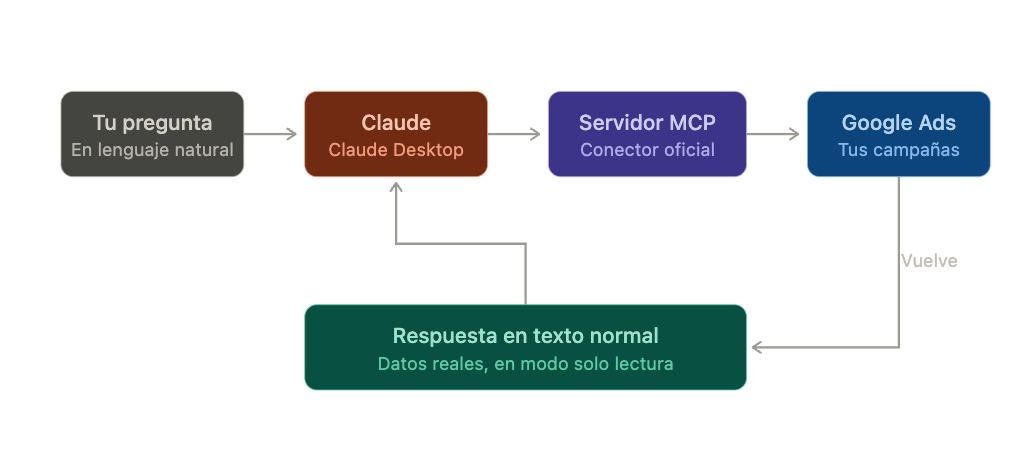
The full loop is simpler than it looks:
- You ask Claude about your campaigns in plain language.
- Claude notices it has the Google Ads tool available.
- The MCP server queries the Google Ads API with your credentials.
- The data flows back to Claude, which answers you in plain text.
What you need before you start
- Google Ads access: a Google account with permission over the ad account you want to analyze, and a manager account (MCC), which is where you request the token from.
- Claude Desktop: the Claude desktop app, on Mac or Windows (not the web version).
- Python with pipx: the installer that launches the official server.
- Google Cloud CLI (gcloud): Google's command-line tool that you will use to generate the credentials file. It is the only moment you will touch the terminal.
- About 45 to 60 minutes the first time. After that, zero.
The two layers of credentials (read this before touching anything): Google Ads asks for credentials at two levels. On one side, what identifies your application: the OAuth client and the developer token. On the other, your personal authorization: the credentials file with which you grant permission to read your campaigns. Understanding this separation is what avoids 90% of the mess.
Part 1: prepare the credentials in Google Cloud
Everything in this part is done once. The result is three pieces: an OAuth client (a JSON file), a developer token and your Google Cloud project ID.
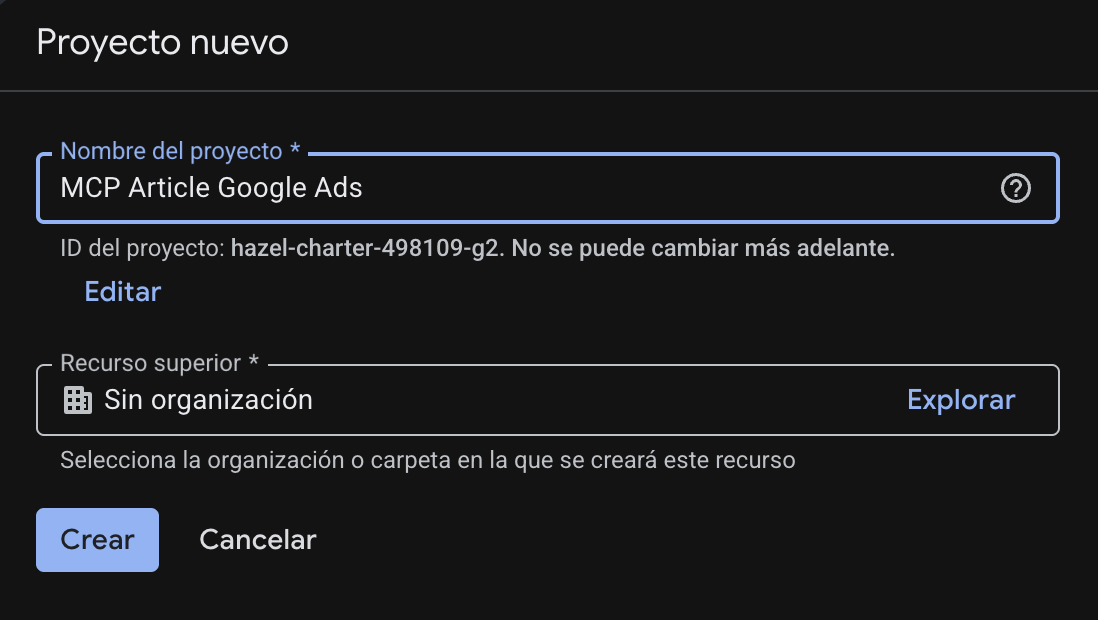
Step 1: Create a project in Google Cloud
- Go to console.cloud.google.com with the Google account that will own the integration.
- Click the project selector in the top bar and choose “New project”.
- Give it a name you will recognize, for example “Claude Google Ads”, and create it.
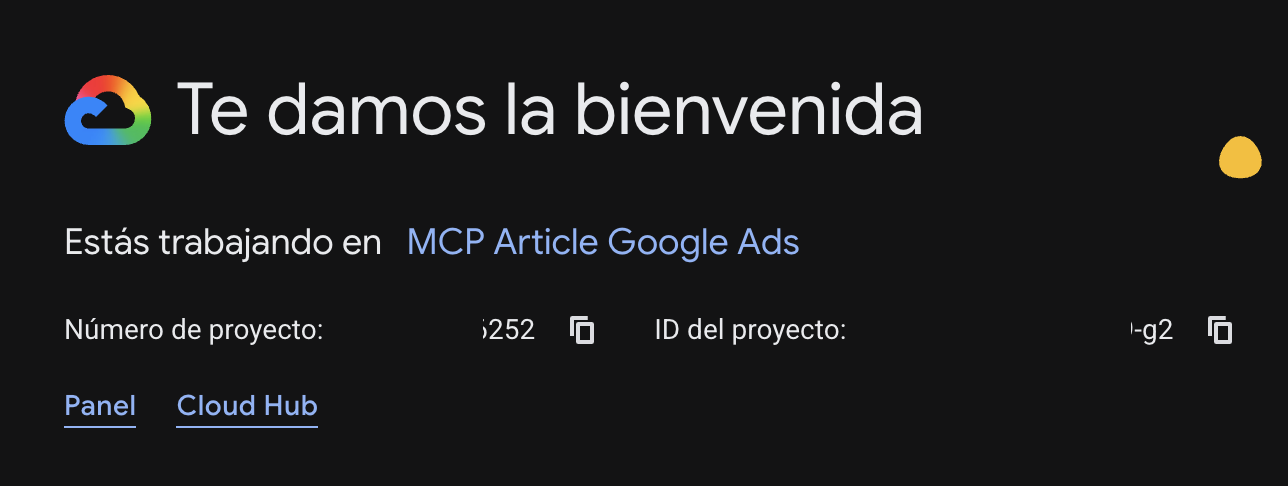
- Select it, so that all the following steps land inside this project.
Note this down: the project ID (not the name) is what you will need later in the Claude configuration. Copy it when you see it.
Step 2: Enable the Google Ads API
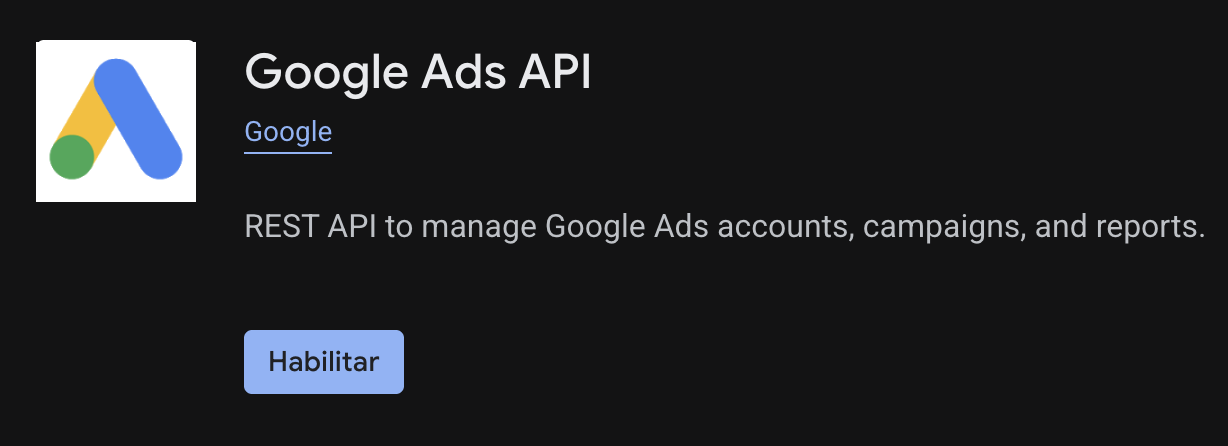
Without this step, the project has no permission to talk to Google Ads.
- In the side menu, go to “APIs & Services” and then “Library”.
- Search for “Google Ads API”.
- Open it and click “Enable”.
Step 3: Configure the OAuth consent screen
This is the screen you will see when you authorize access to your account. You configure it once.
- Go to “APIs & Services” and then “OAuth consent screen”.
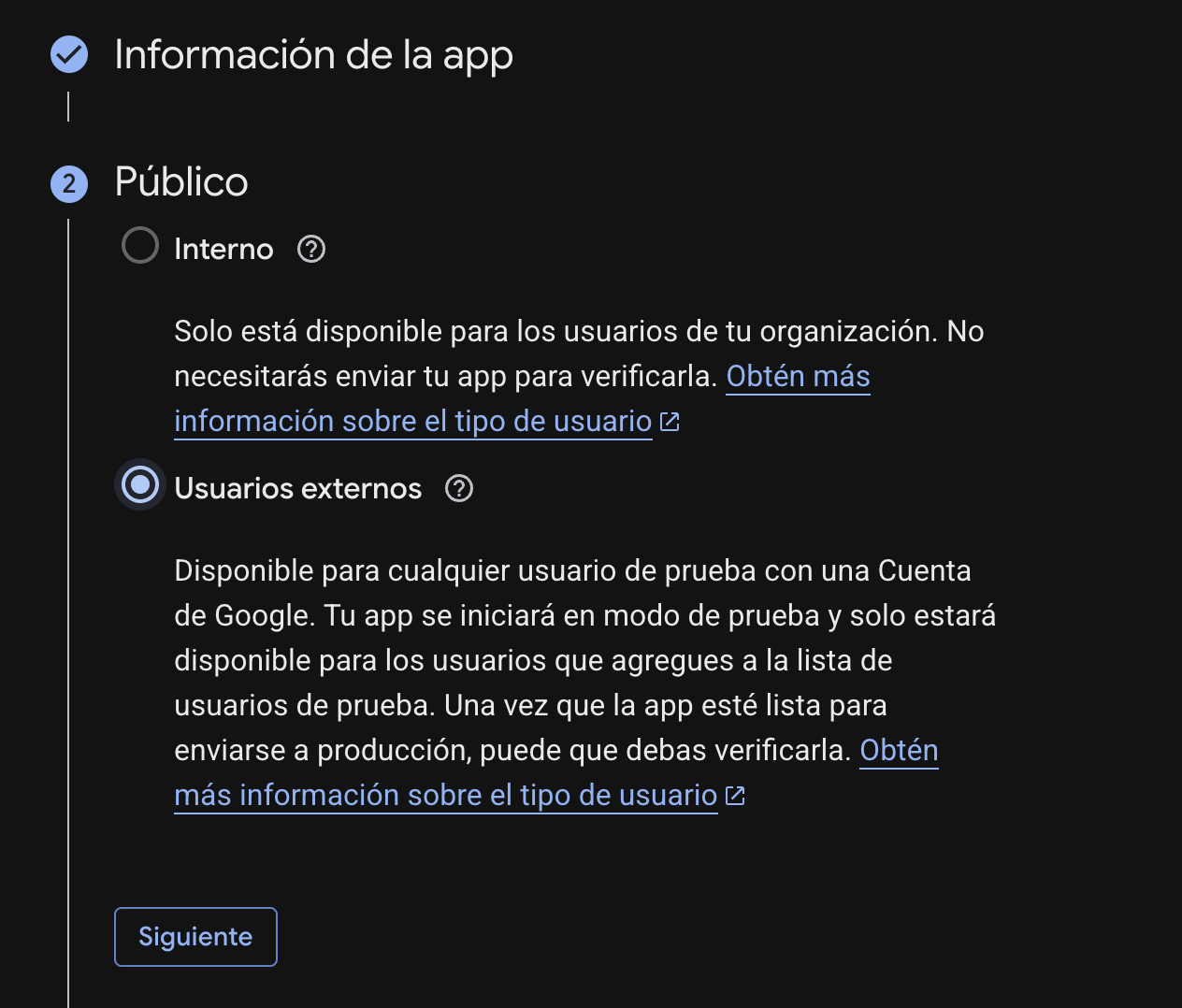
- For user type, choose “External”, unless all accounts are inside your Google Workspace organization.
- Fill in the app name, the support email and the contact email.
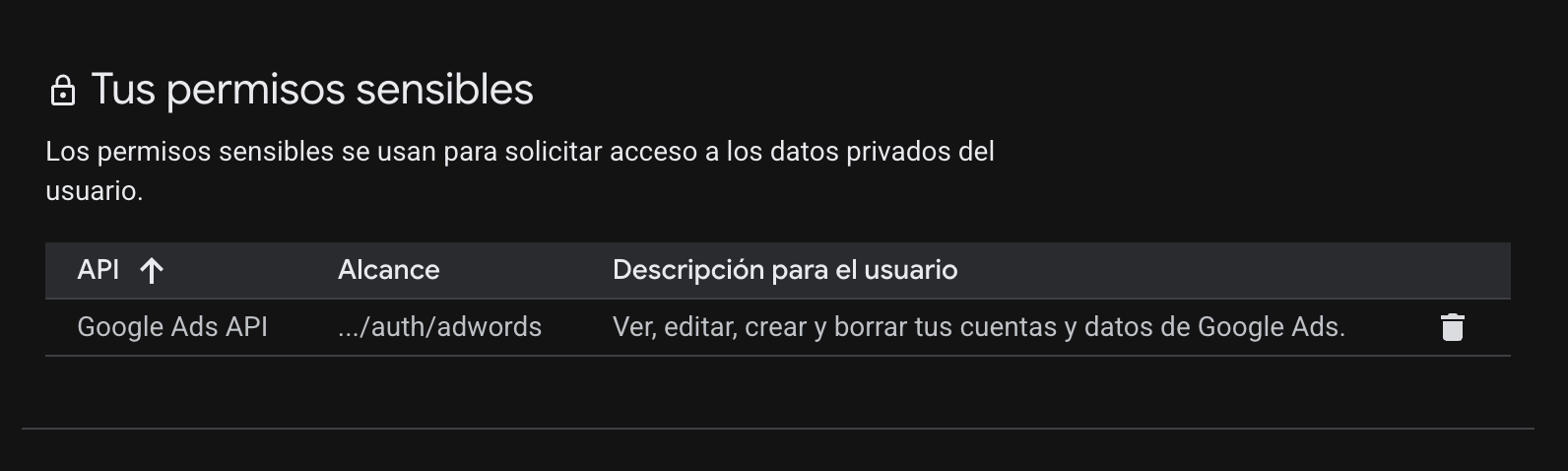
- Add the Google Ads scope:
https://www.googleapis.com/auth/adwords
- While the app is in “Testing” mode, add your own Google account as a test user.
A warning that saves you grief: while the OAuth app is in Testing mode, the authorization expires after 7 days and Claude will stop reading data. Once everything works, publish the app to Production so the authorization stops expiring. Note: this is independent of the developer token level.
This warning matters. When I had no clue, it never occurred to me to publish the app in production mode and I had to keep renewing the consent constantly. After making sure that an app in production does not mean everyone can suddenly access it, I published it and now I renew it once every 3 months.
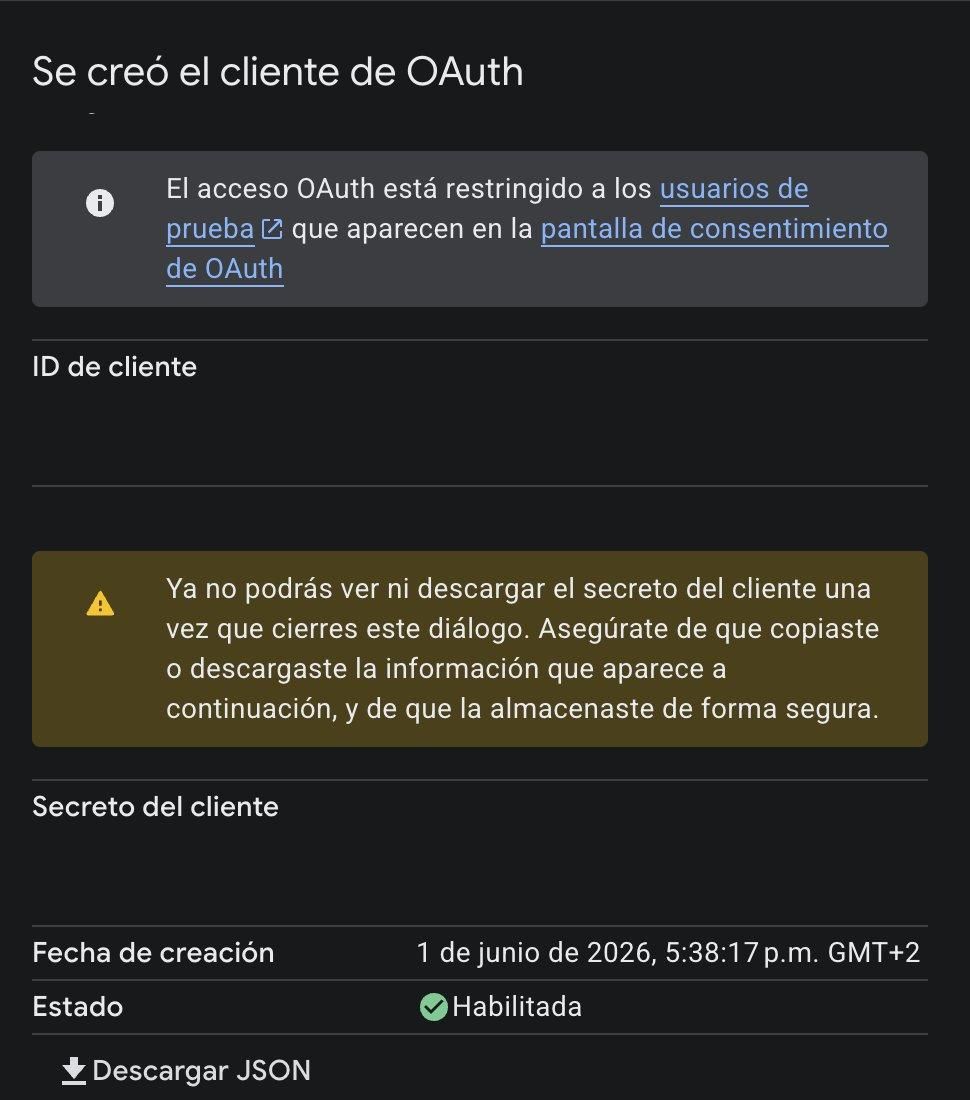
Step 4: Create the OAuth client and download its JSON file
This file is what identifies your installation to Google.
- Go to “APIs & Services” and then “Credentials”.
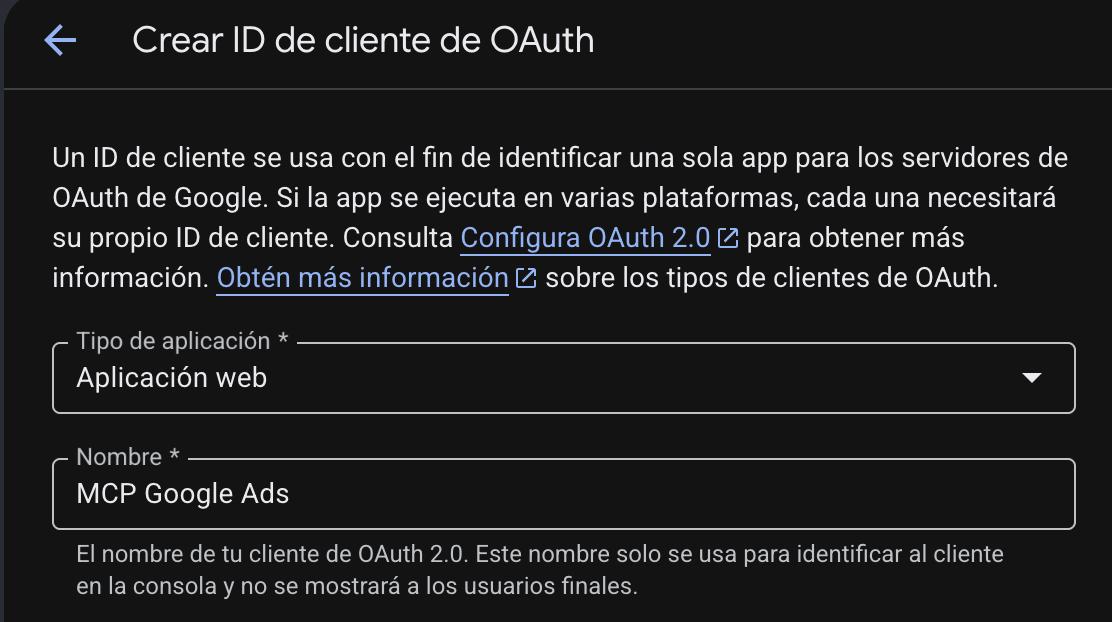
- Click “Create credentials” and choose “OAuth client ID”.
- For application type, choose “Web application”.
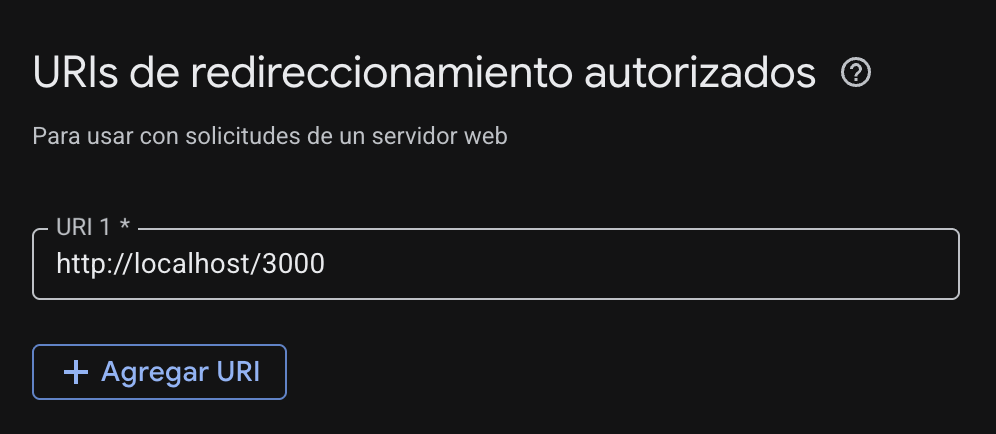
- Add an authorized redirect URI of the http://localhost type (the authorization will be completed on your own machine, in Step 6).
- Create it and download the client JSON file. Save it in a folder that is easy to find, for example your home folder.
About the redirect URI: use http://localhost:3000 as the authorized redirect URI. It is the port on which the server completes the authorization on your machine, in Step 6.
Step 5: Get the developer token
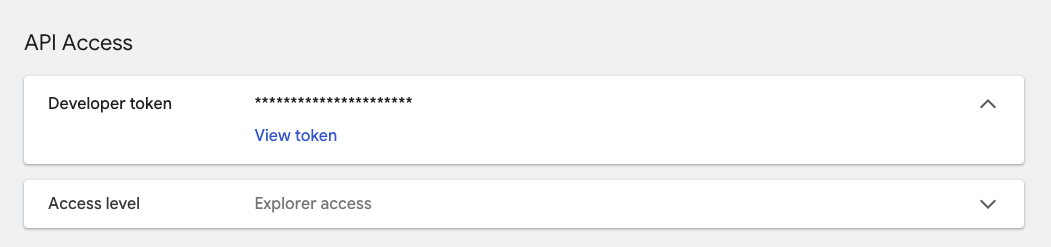
The developer token is not in Google Cloud, it lives in the Google Ads interface, and you can only request it from a manager account (MCC).
- Go to your Google Ads manager account (MCC).
- Go to “Tools and settings”, then “Setup” and “API Center”.
- Complete the API access form and accept the terms.
- Copy the token that appears. You will need it in the Claude configuration.
The level you need is Explorer, and it is usually automatic: when you request it, Google will typically grant you the Explorer level instantly, which already lets you read your real production accounts (with certain daily volume limits). To query your campaigns you do not need to move up to Basic or Standard. And, by pointing to your manager account as context, the same token works for any account hanging off that MCC.
The only case where you will have to wait: if Google cannot review your request automatically, instead of Explorer it will give you “Test Account Access” (test accounts only) with a pending status. If that happens to you, you will not read real data until they approve a higher level.
I think I waited about 8 hours; then an email came confirming it was ready.
Step 6: Generate the credentials file with a command
This is where you authorize your account. You will run a command that opens a Google link, asks for permission in the browser and saves a credentials file on your machine. It is the only terminal moment in the whole guide.
Open the terminal and run this command, replacing PATH_TO_YOUR_CLIENT_JSON with the path of the file you downloaded in Step 4:
gcloud auth application-default login \
  --scopes https://www.googleapis.com/auth/adwords,https://www.googleapis.com/auth/cloud-platform \
--client-id-file=PATH_TO_YOUR_CLIENT_JSON- The browser will open with a Google authorization link.
- Sign in with the Google account that has access to your Google Ads and accept the permissions.
- When it finishes, the terminal will show a line with the path of the credentials file it just created:
Credentials saved to file: [PATH_TO_CREDENTIALS_JSON]Copy that path. It is the one you will put in the Claude configuration in the next step.
Authorize with the right account: use the Google account that actually has access to the Google Ads account you want to read. If you authorize with a different account, Claude will not see those campaigns.
Part 2: connect the server to Claude
You now have the three pieces: the path of the credentials file, the project ID and the developer token. Now you hand them to Claude Desktop.
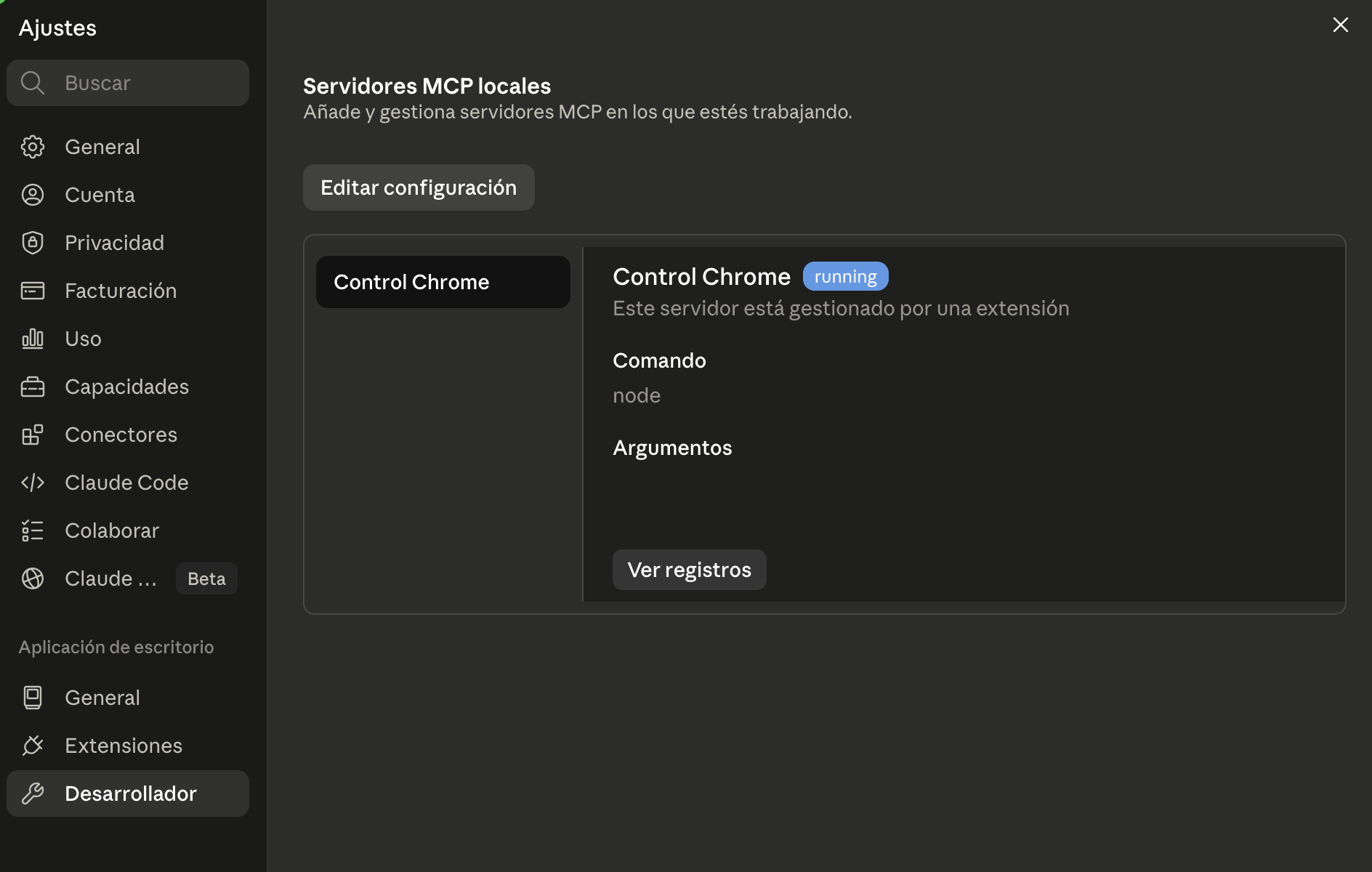
Step 7: Open Claude's configuration file
- Open Claude Desktop.
- Go to Settings and then the Developer section.
- Click “Edit Config”. A file called claude_desktop_config.json will open.
The button takes you straight to the file, so you do not have to hunt for it in your system by hand.
Step 8: Paste the Google Ads server configuration
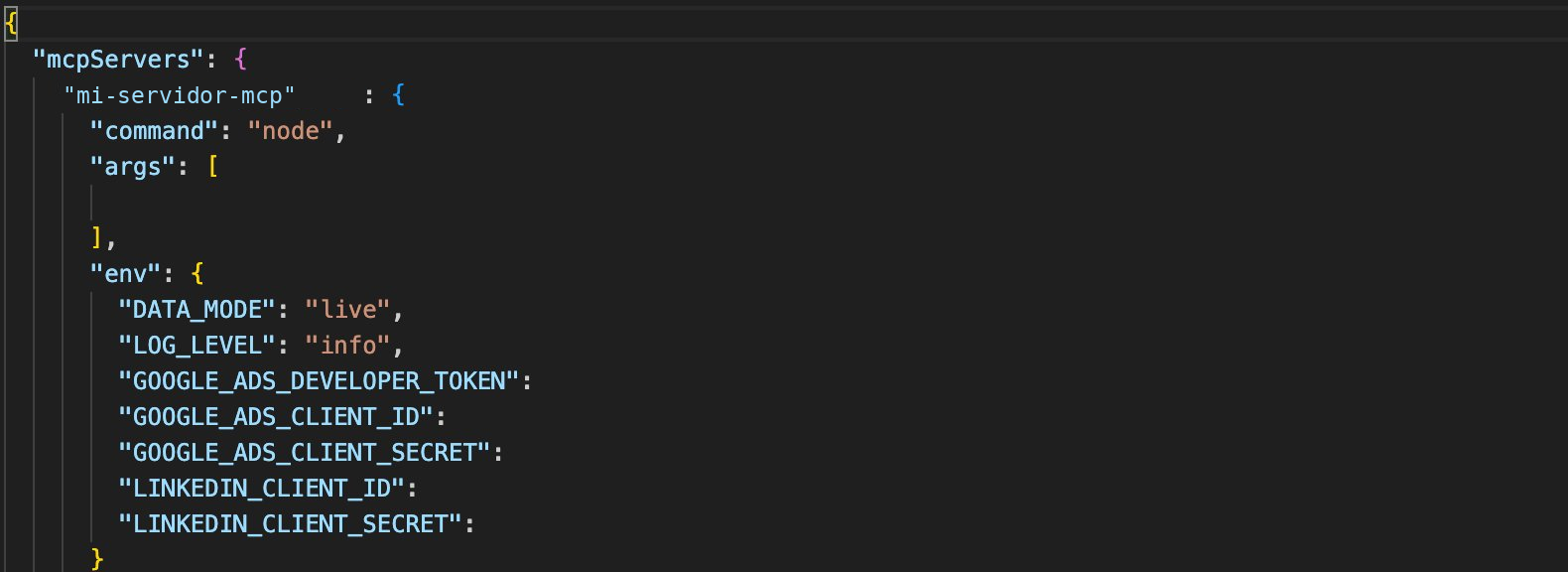
Inside that file, paste Google's official server block. Replace the three uppercase values with yours:
{
  "mcpServers": {
    "google-ads-mcp": {
      "command": "pipx",
      "args": [
        "run", "--spec",
        "git+https://github.com/googleads/google-ads-mcp.git",
        "google-ads-mcp"
      ],
      "env": {
        "GOOGLE_APPLICATION_CREDENTIALS": "PATH_TO_CREDENTIALS_JSON",
        "GOOGLE_PROJECT_ID": "YOUR_PROJECT_ID",
        "GOOGLE_ADS_DEVELOPER_TOKEN": "YOUR_DEVELOPER_TOKEN"
      }
    }
  }
}
What each thing is, in plain English:
GOOGLE_APPLICATION_CREDENTIALS: the path of the credentials file that the Step 6 command printed for you.GOOGLE_PROJECT_ID: the Google Cloud project ID from Step 1.GOOGLE_ADS_DEVELOPER_TOKEN: the token from Step 5.
If you work with an MCC (this is key): to read any account hanging off your manager account, add one more line inside “env” with your MCC ID. With that, the same setup works for all your clients:
"GOOGLE_ADS_LOGIN_CUSTOMER_ID": "YOUR_MCC_ACCOUNT_ID"The silly mistake that costs half an hour: this file is JSON, so one extra comma or a badly closed quote makes Claude fail to load the server. If something is off, check first that the JSON is written correctly.
Step 9: Restart Claude and check it works
- Quit Claude Desktop completely. Closing the window is not enough, you have to close the application entirely.
- Open it again and start a new chat.
- Try these questions, in this order:
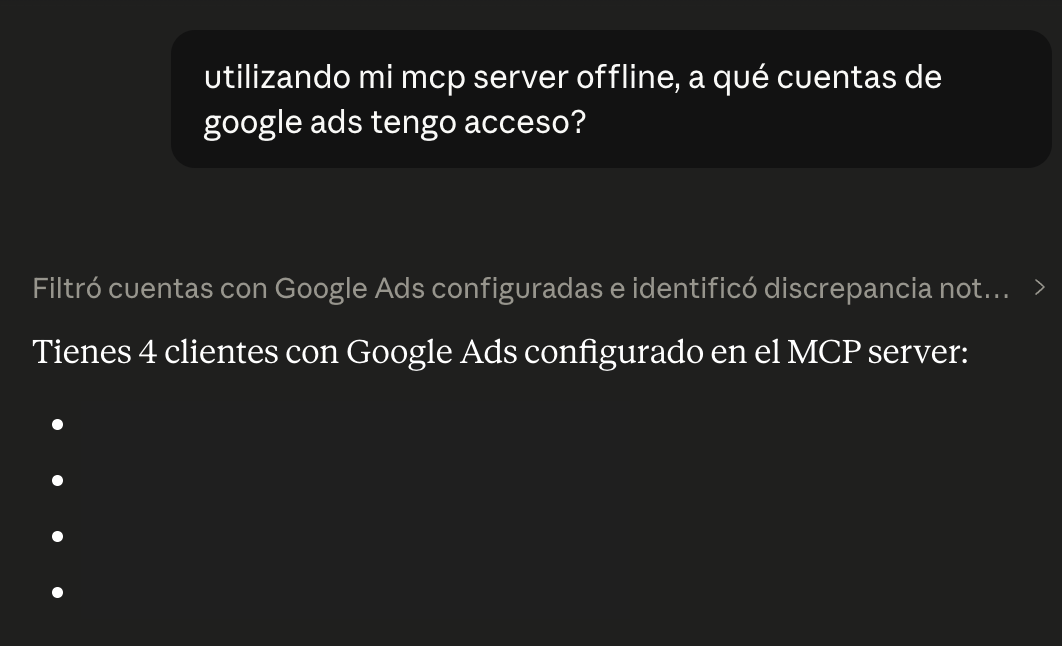
“Which Google Ads accounts do I have access to?”, then “How many active campaigns do I have?” and “How are my campaigns doing this week?”.
Why quit completely: Claude launches the server as a separate process and keeps the version it loaded on startup. If you only close the window, it may keep running the old configuration and you will think it does not work.
Under the hood, Claude uses two of the server’s tools: one that lists the accounts you have access to and another that queries your metrics. If you manage several accounts, the easiest thing is to include the customer ID directly in your question.
When I set up a new connection I always validate by asking (1) which accounts it has access to and (2) the overall account performance for the last 7 days and how much was spent.
What Claude can and cannot do with this
- It can: list the accounts you have access to and query metrics, budgets and campaign statuses.
- It cannot: pause campaigns, change bids, move budgets or create anything. It is read-only.
For analysis, diagnosis and reporting, this is exactly what you want. To execute changes, you still go into the account yourself.
The most common errors (and how to get out of them)
- Claude does not return real data: your token probably stayed on “Test Account Access” instead of Explorer. Check the level in the API Center.
- It worked and stopped working after a few days: the OAuth app is still in Testing mode. Publish it to Production.
- It cannot find the account or gives an access error: if the account hangs off an MCC, you are missing the GOOGLE_ADS_LOGIN_CUSTOMER_ID line with the manager ID.
- Claude does not even see the server: either you did not restart the app completely, or the configuration JSON has a syntax error.
Not returning real data is the most typical error. If you do not guide Claude from the start, it will always be getting things wrong because either it does not understand the context or it is looking at the wrong data.
Without context, you only have 50%
Connecting Claude to Google Ads is only half the job. The server gives it the numbers, but it does not give it the judgment to interpret them. If you ask about performance with nothing else, it will give you a generic, textbook reading.
The difference is working inside a Claude Project and giving it the business context. Upload the documents you already use to understand the account, for example:
- The client brief: what they do, how they acquire and what they consider a conversion that truly matters.
- Your latest reports: what is the most recent performance you analyzed and what decisions you already made.
With that context, Claude stops describing metrics and starts relating them to the business. That is the part that turns the connection into something genuinely useful.
Summary
- Connecting Claude to Google Ads does not need a paid connector: Google publishes an official, free MCP server.
- The hard part is the Google Cloud credentials, not the AI.
- You need three pieces: an OAuth client (a JSON), a developer token and a project ID.
- With the Explorer level of the token you already read real accounts, and it works for any account in your MCC.
- The connection is read-only: Claude reads, it touches nothing.
Action plan
- Create the project in Google Cloud and enable the Google Ads API.
- Configure the consent screen and create a Web application OAuth client.
- Request the developer token from your MCC (they will give you Explorer).
- Generate the credentials file with the gcloud command.
- Paste the configuration block into Claude Desktop, restart and ask it about your accounts.
Want us to set it up together?
If you got lost anywhere in the credentials, or you want to take this further (connecting Meta Ads, GA4 or your CRM too, or building a custom reporting system on this same base), I can help. Write to me using the contact form on this article and we will talk about your specific case.
Final thought
The hard part of connecting an AI to your marketing data is never the AI. It is the plumbing of permissions and credentials underneath. Whoever understands that builds in an afternoon what others pay for in licenses every month, and ends up understanding their own stack far better than whoever delegates that part to a closed tool.